So…. How do you back up your photos?

So I haven’t written in a while because I’ve been dealing with recovery after my hard drive died a few weeks ago… Yes, my whole business, all thousands of photographs, gone…

Which would be very sad if it were not for my back-ups! :)

I had used Time Machine in the past to back-up my computer to an external hard drive, but I realized that I didn’t back things up as often as I should. At work I use time machine and just automatically plug in my external drive and have it do it’s thing while at my desk, but when I’m home it’s just not so convenient as I sit on my sofa on my home laptop, and I could easily go weeks without backing up.

So I got a subscription to Carbonite, which continually backed up all my files to the cloud through my wireless connection, no matter where I was, and I didn’t have to think about it at all. Much more like it, though it didn’t back up applications, just files.

So after I got my new hard drive I was able to recreate the overall structure from my most current Time Machine, and my jpegs are all downloaded, working on the psd files now.  I think I’m going to have some issues with some of my applications, have to dig up some old installation CDs to find serial numbers, etc. (note to self – next time be more organized about that…) but at least all my thousands of photos are saved, whew…

I wonder whether I should just have my files in the cloud in some Google drive or something, will have to ponder that for a while… … so this made me wonder, how do YOU back up your photos? I’d love to hear your ideas in the comments section as I reconsider what to do for the future…

Susan

From DPS – Digital Photo Editing Workflow – Better Images From Capture to Output

Just read a great summary in Digital Photography School of the complete process from the time you take the picture to the final photo. They discuss these steps:

Capture – Composition, lighting, exposure, focus

Pretty happy with my focus, work to do re. exposure, always learning

Import – Storage, file naming, database, backups

I used to have this compulsion to include in the file name one letter reminders of the stock photo sites each photo got into, my workflow got a lot simpler then I realized it didn’t matter… I use Carbonite as my back-up because it just happens automatically, you don’t have to remember to do anything. SO glad I had it when it looked like my hard drive might have been fried. Turned out to just be a bad cable, but good to not have to sweat it while waiting to have it looked at, and not having to worry I could have lost pretty much my whole photography business…

Organize – Selections, ratings, collections, metadata

I don’t go with folders, maybe I should, but the first word in my file is typically the location or key word, works for me…I definitely include the metadata

Develop – Crop/straighten, tone & color, sharpening, remove artifacts, creative effects

They cover this in great detail, nothing to add.

Output – Destination?, file settings, delivery

In my case, as you know, it’s the stock photo websites, starting to explore some framing…

To read more details and see some great photo examples, see Digital Photo Editing Workflow – Better Images From Capture to Output

From DPS – Top 10 Mistakes that Cause Blurry Photos

While we’re on the theme of avoiding blurry photos, here ‘s another article I think you’ll find quite useful. The causes they focus on are:

1. Your shutter speed is too slow
2. Not using a tripod
3. Bad camera holding technique
4. Your aperture is too wide
5. Not using autofocus
6. Not focusing in the correct place
7. Using the incorrect focus mode
8. Not using manual focus
9. Junk on or in front of your lens
10. Poor lens quality

Read the article for more details and example photographs. I’m still working on focus modes, the others I’ve definitely dealt with and am getting much better on. One step at a time…

From PictureCorrect – Seven Tips for Sharper Photos

PictureCorrect has a great article with 7 starter tips for sharper photos. It goes into detail into:

1. Tripod

2. Cable release or remote

3. Self-timer

4. Mirror lock-up

5. Use your lens’ sharpest aperture

6. ISO

7. Image stabilization

You can read the whole article here .

In my case I started by using my monopod, with image stabilization off, which was a tremendous help in getting sharp photos.  Later I realized that I was getting better at having a steady hand when taking photos handheld, and I started adjusting the shutter speed to go for sharper photos.  I’d start at the inverse of the focal length, so if I was shooting at 100 mm I’d start at 1/100 sec, then adjust depending on whether I was shooting a moving (so faster shutter speed) or stable (no need to push the shutter speed) object.

When I started taking stock photos the goal of focus at 100% magnification, which is the requirement for many stock photo agencies, was daunting, but now I get it “tack-sharp” most of the time hand-held. It was a matter of getting out there and shooting lots of photographs, first with tripod and cable release, etc. , then monopod, now handheld… Remember I’ve been taking photos seriously for a number of years, got my first DLSR 10 years ago, take it one step at a time, and master your camera as you need to…

From PictureCorrect – How to Avoid The Most Common Photography Mistakes

Click here for details on avoiding 15 most common photography mistakes, along these areas:

1. Light and shadow
2. Location
3. Focus
4. Aperture
5. Composition
6. Framing
7. Flash
8. Shutter speed
9. Camera basics
10. Trying to shoot at night without a tripod
11. Attention
12. Backgrounds
13. Shooting
14. Creativity
15. Horizons


Great advice!

From Digital Camera World – 24 of their most popular photography cheat sheets

Get quick access to lots of useful tips to improve your photos, from the cheat sheets of Digital Camera World, with credit to my sister for passing me the link. They include:

1. 54 portrait ideas: Free downloadable posting guide
2. 6 simple lighting set-ups for shooting portraits at home
3. Free f-stop chart: Master your aperture
4. Free family portrait photography cheat sheet
5. How to use a histogram – photography cheat sheet for achieving perfect exposure
6. Portrait photography cropping guide
7. Free wedding photography cheat sheet
8. Understanding the color temperature scale: Free photography cheat sheet
9. Free portrait lighting cheat sheet
10 Metering mode cheat sheet: how they work and when to use them
11. How to pose for photos: Find the most flattering angles for you and your subjects
12. What is exposure compensation: Free cheat sheet for photographers
13. Full-frame sensor size explained: How to exploit its advantages for pro-quality pictures.
14. How to calculate hyperfocal distance: Free photography cheat sheet
15. What is ISO: Camera sensitivity setting (and the best ways to use them)
16. Free night photography exposure guide: Best camera settings for popular subjects
17. Home studio setup: 6 things every photographer needs
18. Best shutter speeds for every situation
19. Using apertures: When to go small and when to go wide
20. What is flash sync? Your flash modes and when to use them
21. Autofocus point options: What subjects should each be used with
22. What your camera captures at every focal length
23. 3 ways you can affect depth of field: Photography cheat sheet
24. The landscape’s greatest challenges: Free photography cheat sheet

Check them out here , and share your own tips in the comments section below.

From DPS – Ten go to editing tips for using photoshop

From the folks at Digital Photography School, some quick photoshop tools that might save you lots of time. They discuss:

1. Duplicating layer masks for other adjustment layers

2. Adding a curve adjustment layer with a difference

3. Dodge and burn

4. Layer comps

5. Stamp visible

6. The “place” command

7. Patch tool

8. CMD+T or Transform

9. CMD+T+Warp tool

10. Opening second window for the same document

Learn more about how they use these time saving tools here and share your favorite photoshop tips in the comments section below.

From DPS – How to Master Your DLSR in One Afternoon

Digital Photography School has another great article for beginners, this one gives an introduction to

ISO
Aperture
Shutter Speed

These are the three components that determine how much light gets into your camera, and discusses each component’s effect on other factors such as focus area, noise, and focus, with good examples.

Read it here

From PictureCorrect – Eight Worst Habit of Beginning Photographers

Another great list, this one from PictureCorrect, of what not to do:

BAD HABIT #1: SHOOTING IN BRIGHT DAYLIGHT (need to avoid harsh shadows)
BAD HABIT #2: SHOOTING JPEG (though I do it…)
BAD HABIT #3: CENTERING THE SUBJECT (reminder of rule of thirds)
BAD HABIT #4: SHOOTING FROM EYE HEIGHT (so many angles you miss out this way)
BAD HABIT #5: IGNORING THE BACKGROUND (you saw this in my 4th of July entry)
BAD HABIT #6: TAKING COMMONPLACE SHOTS (that’s been fun, getting creative)
BAD HABIT #7: HAND-HOLDING EVERY SHOT (though I’m learning to get away with it)
BAD HABIT #8: TAKING ONE SHOT (definitely, don’t take the shot, make the shot)

Check out the details at PictureCorrect.

From DPS – 5 Photoshop Tools to Take Your Images From Good to Great

From the folks at Digital Photography School, 5 very quick and easy to understand tools that will get your photographs that “pop”. They discuss the following tools:

– Shadow and Highlights
– Levels
– Color balance
– Hue and saturation
– Vibrance

which are pretty much the tools I use most of the time. Check them out here

From DPS – Learning about ISO, shutter speed, aperture, aka the Exposure Triangle

I mentioned Digital Photography School as an excellent resource for tutorials. They recently celebrated their 8th anniversary and posted their 15 most popular tutorials.

Three of these are some great tutorials about ISO, shutter speed, and aperture, which are the three settings that determine how sensitive the camera is to light (ISO), how long your shutter is open to allow light in (shutter speed), and how big an opening you have for that light to come in through (aperture, which affects how much of your photo is in focus). I encourage you to check them out:

ISO settings in digital photography

Introduction to Shutter Speed in Digital Photography

Introduction to Aperture in Digital Photography

Then let me know what you think in the comments!

Susan

Need Help with your Macro or Business? Get Mike Moats’ e-books

For those who can’t attend Mike Moats’ wonderful workshop, here are some e-books you might want to get.

Mike Moats's avatarMike Moats

Daily Macro View

____________________________________________________________________

Need help improving your macro skills, or looking to make a little money with your photography, check out my e-books.

Creating Art With Macro – $14.95 click here

70 Tips for Making Money as a Nature Photographer – $4.99 click here

___________________________________________________________________

View original post

Review – Mike Moats Macro Bootcamp

I recently attended Mike Moats Macro Bootcamp.

It was everything I hoped it would be. A tell-it-like-it-is description of how he takes his wonderful photographs, to the level of detail that you can do it yourself. He covered lenses, accessories, camera details, the keys to flower and critter photographs, what buyers want, taking photographs at a botanical garden, elements of design and composition, finding character in nature, his workflow, including demos of how he uses software to clean up his photos, fun ideas for photography, and many many more.

He has lots of opportunities for you to try out his tips, with plenty of things to take photos of. He walks around and gives you advice, suggestions, and lots of encouragement. Overall a very positive experience.

I can already tell the difference when I’m looking for that photo to take, such as at the Matthaei Botanical Gardens earlier this week:

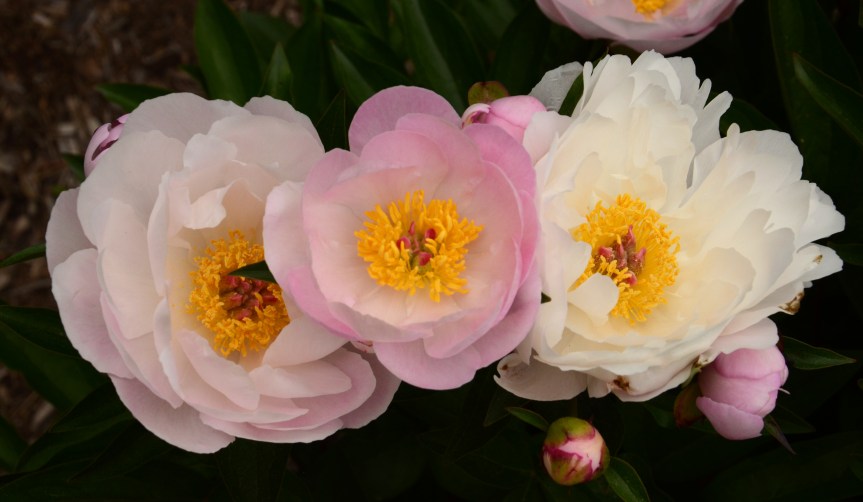
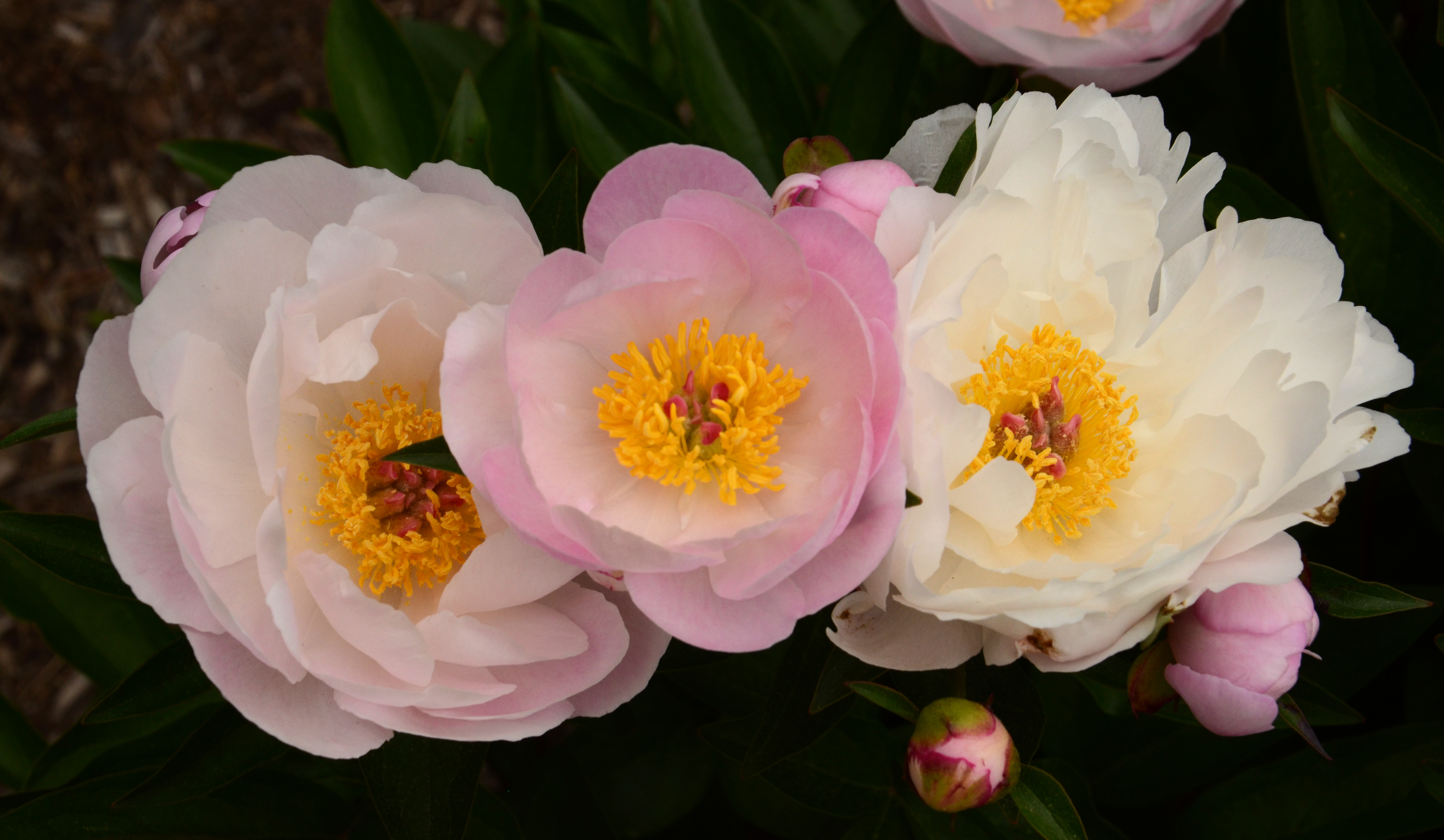
Matthaei peonies pink between whites

You can follow his blog to learn more about this amazing and amazingly generous photographer.

Beware of copyrights and trademarks

When you shoot a non-editorial stock photo you have to be very careful to not have any copyrighted or trademarked objects in your photos. That means no logos on clothes, no easily identifiable copyrighted buildings.

I was going to write more about copyright but I noticed this great entry at Media Bakery Design that does a great job and includes a list of copyrighted work as well.

What this means in stock photography is that if there are any logos or other trademarked material in your photos you must edit them out before submission.

Note that if you plan to sell your photos for art (so NOT stock photography) that includes trademarked material that’s another story. To quote the World Intellectual Property Organization:

“Unlike copyright law, trademark law as such does not restrict the use of a trademark in a photograph. What it does forbid is the use of a trademark in a way that can cause confusion regarding the affiliation of the trademark owner to the image. If consumers are likely to mistakenly believe that the trademark owner sponsored a photograph, then there may be trademark infringement.”

Notice that this is just my understanding of it, and this is not intended to be legal advice, please do your own homework, laws do change…

Review – Ten Mistakes you are Making with your Photography

Lynford Morton is a photography coach who runs photography workshops in Washington, DC. You can download a very useful booklet from his website that reminds you of typical mistakes we can make when we are not thinking through our photographs.

I encourage you to download it and review it from time to time to check that you’re not making one or more of the 12 mistakes!

Review – National Geographic photography video courses

Many of us dream of becoming National Geographic photographers one day so what better resource than an actual National Geo photographer! I have considered attending a National Geographic photography workshop, but they are beyond my current budget and I was worried I wouldn’t be able to absorb that much information that quickly. So I was delighted when I found National Geographic photographer Joel Sartore’s video courses!

The set of “Fundamentals of Photography” and “The Art of Travel Photography: Six Expert Lessons” is currently on sale for $90, and well worth the investment. Fundamentals of Photography has twelve hours of video covering basics of equipment, camera setting, light, composition, plus specific advice for different kinds of photography. He takes you on the field and shows you how he thinks through and composes photographs. He also comes with a 150 page PDF guidebook that summarizes the lessons and his advice. I can already see an improvement in my thinking as a photographer from watching these videos. The Art of Travel Photography is composed of five hours of densely packed information that takes you along on some of his trips and gives you lots of information to improve your photography, plus an assignment with each lesson to get you started.

Mr. Sartore is very easy going, and makes his point with great examples of real photos he has taken both professionally and personally. He has many “in the field” examples where he shows you how he sets up a photograph, and how he improves on it. Remember that motto, “don’t take the shot, make the shot”. Mr. Sartore will show you how to do that.

Getting focus at 100% magnification

When I first started taking photographs the idea of having photos in focus at 100% magnification seemed impossible – but clearly it’s possible now… :) Some suggestions:

To check whether your photo is in focus at 100% in iPhoto, view your photo full screen and press “1” – it will magnify your photograph to 100%, so you can look around and see if your photo is in focus. To get it back to full screen press “0”. Disheartening at first, eh? No worries, you will get better.

Here are various suggestions that have helped me get to 100% – you won’t use all of them at the same time, each has their time and purpose:

Use a tripod – I use a Vanguard tripod, as recommended by the folks at Huron Camera Shop in Dexter. It is very sturdy, quite flexible, and small enough. Don’t forget to buy a ball head to go on top of it! Make sure you have turned off the vibration reduction “VR” setting of your camera, which will try to correct for motion that will no longer be there, creating its own motion, ironically enough…

Use a monopod – Sometimes a tripod is too much, so I use my monopod – it looks kind of like a cane, and you can screw your camera to it, giving you a steadier hold. Much easier to take into crowded places. Now I can take photos at 100% without the monopod, but when I started it was invaluable.

Use a fast shutter speed, at least as fast as the inverse of your focal length. So if your lens is at 100 mm focal length, shoot at 1/100 of a second or faster shutter speed. The less time the shutter is open the lower the chances that things will shake while the shutter is open. Sometimes I just run the camera on Shutter priority, increase the ISO so the camera is more sensitive to light and I won’t have to have the shutter as open, and adjusting exposure compensation to make sure I’m spanning as much of my histogram as I can. (and don’t worry if you have no idea what I just said, you’ll master ISO, exposure, histograms, just take it little by little. I took it one step at a time, you can too…)

“Roll” the shutter rather than pressing it. Don’t “click” the shutter but rather press it in a rolling motion, as if you were getting a fingerprint taken.

Set your camera on 2 sec, 5 sec, or 10 sec delay. If you’re shooting something that’s not moving, set your camera to a time delay. This way you can click the camera, wait for the camera shake to settle, then the camera takes the photo.

Use a remote shutter release. The Nikon one costs about $20 and lets you take photographs without touching the camera, reducing the camera shake.

Try some combinations of these and next thing you know your photos will be at 100% too. Have other suggestions? Include them in the comment section, thanks!

Review – Digital Photography School

I signed up for Digital Photography School’s tips and tutorials‘s RSS feed and I love getting their tips every day. Sometimes they might not be about something I’m interested in, like HDR, but more often than not I learn something from each, and on days that I don’t have time to focus on photography I appreciate staying connected to photography through their posts.

I would suggest if you’re just getting started you take a look at their Digital Photography Tips for Beginners for quick introductions to exposure, shutter speed, ISO and apertures.

… then take it from there – you could spend hours (and I have…) reading their non-ending set of tutorials with many excellent suggestions, and if you sign up for their RSS feed the tips will just keep coming – or maybe Pinterest or another means is more to your liking…

Review – Lynda.com photography and Photoshop courses

I find lynda.com courses tremendous resources to learn Photoshop and improve my photography. It costs $25/month, so I just subscribe for a couple months each summer, when I have more time to devote to it. Courses I’ve taken the past four summers include:

Shooting with the Nikon D7000 – Ben Long is just the best at patiently walking you through every single button in your camera to teach you how to get the most out of your camera. I started with a Nikon D40, a 6MP camera, and after I got more serious about stock photography moved up to the D7000 to have a 16MP pixel camera, so I could have more flexibility with my photos, knowing I could crop them and still have photos large enough to be accepted into stock photo sites.

Foundations of photography: Composition – Ben Long does a great job of teaching everything you need to know about composition – perspective, symmetry, rule of thirds, photographing people, landscapes, with terrific examples and assignments.

Foundations of photography: Exposure – Ben Long again, teaching you about the effect of shutter speed, f-stops, aperture, light balance, in an easy to understand style.

Photoshop Top 40 – Deke McClelland starts you off with a great set of essential tools within Photoshop. I go back to it as a refresher.

Photoshop CS4: Image Adjustments in Depth – After taking a Photoshop CS4 workshop, this more in-depth set of sessions from Jan Kabili takes you to the next level with easy to understand tutorials.

Photoshop CS6 Essential Training – A very detailed introduction to CS6 by Julieanne Kost, teaches you about layers, masks, retouching, filters – lots to learn here. I’ll probably refresh my memory with this class this summer.

I have not been disappointed in any of Lynda.com’s offerings. They have knowledgeable, easy to understand, patient instructors that are a pleasure to learn from.

Review – Shutterstock forums

One way I learned what made for a successful stock photo was to read many year’s worth of Shutterstock critique forums. I just read one after another after another and found a generous community of photographers who will give you suggestions about how to improve your photos to get accepted into photography sites. At first the photos the newbies posted looked all right to me, but after a few hundred posts I could look at the photo and predict what the respondents were going to say – that’s when I knew I was ready to submit my photos!

You can see a great example of a photographer who at first was not accepted, then sought advice from the forum, and after acting on their suggestions got in here.

Laurin Rinder and David Smith are particularly helpful, and I got my model and property release templates from Laurin.

Go take a look, you’ll learn a lot!